The Manufacturer section is used to categorize products by
manufacturer. This section can be accessed under Catalog >
Manufacturers.
The Manufacturer names below came with the install. They can be
deleted, and new manufacturer information can be added in its place. The
manufacturer information should be created before products are added,
so the manufacturer category can be selected when adding the product.
Saving a product without including the manufacturer isn’t advised,
because customers can search for products in the store front through
their manufacturer page. With the manufacturer missing from the product
information, the product will not be available on those pages.

To insert a new manufacturer, the following information is required:
- Manufacturer name
- Stores: Default will be selected if there is only
one store. If you have more than one store using OpenCart, you can add a
manufacturer to multiple stores by checking on them. - SEO Keyword: the keyword used for search engine optimization (optional)
- Image: an image of the manufacturer (optional). See the Image manager to learn how to upload images.
- Sort Order: the position the manufacturer will be sorted among multiple manufacturers (optional)

To edit existing manufacturers you can locate “Edit” under “Action”.
Clicking edit will direct you to the form above with the previously
filled-in manufacturer information.
| The product will need to be reassigned to the newly changed manufacturer, if the manufacturer name is changed. If the manufacturer name remains unchanged, but any of the other information is edited, the product will automatically adopt the new manufacturer information. |
Manufacturers in the store front
Manufacturers will always need to be assigned to products in the store inventory to affect the store front. See the Products section
for more information on how to assign manufacturers to products in the
administration. In the store front, the manufacturer “categories” serve
to organize products under manufacturers. To illustrate how products are
organized under manufacturers in the store front, we will create a new
manufacturer and assign it to a product.

In the Catalog > Manufacturer section we created an ‘Acer’
manufacturer; added it to our only store (‘Default’), while including an
SEO keyword, manufacturer image, and sort order. Under Products we
assigned the “Acer” manufacturer to the “Acer Aspire” product.
The Manufacturers page
To access the Acer manufacturer page, the customer can go to the
footer of any page; and under Extras they can click on Manufacturers.

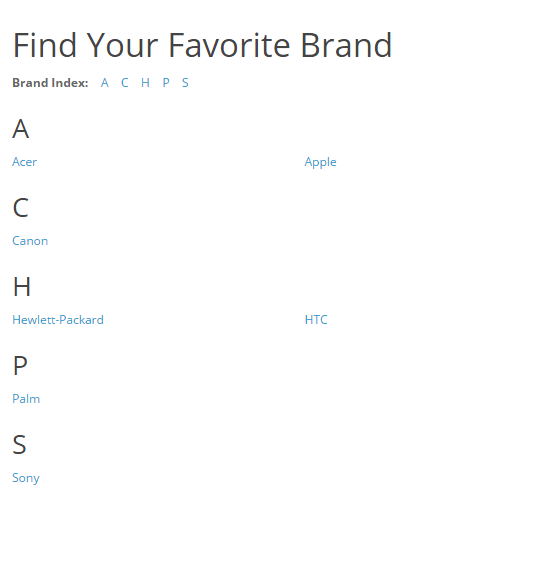
The customer will then be directed to the manufacturers page, where all
the manufacturer names are displayed alphabetically. We can see that our
“Acer” manufacturer was automatically added to this page upon creation.

When the customer clicks on the “Acer” link, they will be directed to a
page listing all the products within this “Acer” manufacturer. On this
page, we can see that the “Acer Aspire” product is displayed because it
was assigned the manufacturer,”Acer”, in the Products section.

Clicking on the “Acer Aspire” will take the customer to its product page.

The “Acer” manufacturer page can also be accessed from the product
page, under “Manufacturer”. This link is helpful for exposing customers
to different products of the same manufacturer in the shop. The customer
can click on “Acer” to be directed to the manufacturer page, where they
can browse other Acer products in the store.
The carousel module
Adding a new manufacturer will not add the manufacturer icon to the
carousel banner on the home page. The newly created manufacturer must be
added to the manufacturer banner under Design > Banners
for the icon to be displayed in the carousel. See the Design> layout section for more information on how to add the manufacturer icon to the banner.