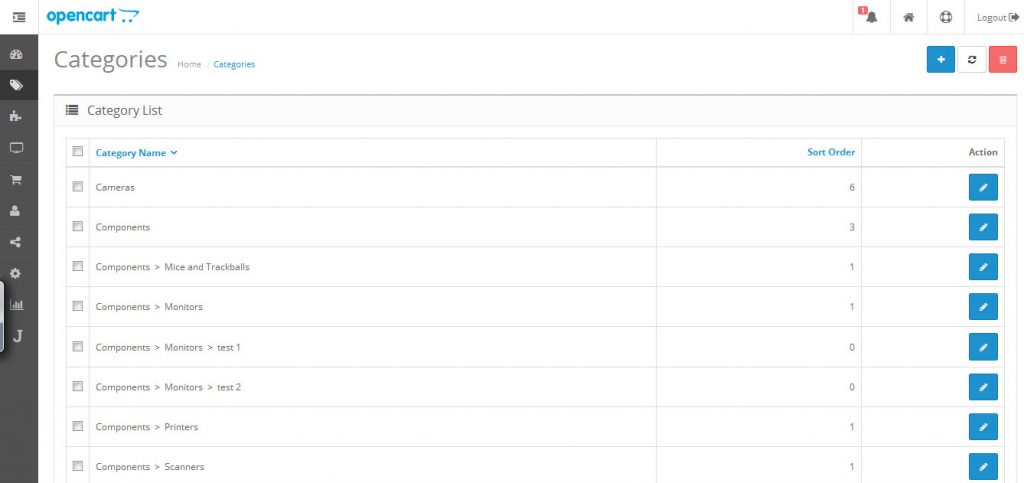
How to set up Categories
1. Go to Catalog, and click “Categories”.
2. In “Categories” page, Click the “+” button which is at the top right hand corner.
General
Category Name: fill in your category name
Description: Description your category (it is depends on your template design or your needs. You can fill it or not. it is not required)
Meta Tag title: important for search engine.
Meta Tag description: You can fill it or not. it is not required
Meta tag keywords: You can fill it or not. it is not required
Both the meta tag description and the meta tag keywords are important to your ecommerce site due to their use by the search engines. Make sure to use the best words to describe your product and identify it when used in a search engine such as Google.
The meta-titles are far superior to the rest of the meta-tags in terms of search rankings.
Data
Parent: If your category is the main category, then leave it blank. If your category is sub-category, then fill in the parent category name.
Filers: it will auto completed.
Store: mostly we choose default. But if you have more than one store. then choose your right store
SEO Url: this let your site SEO friendly. place a unique name for your product. without spaceing. (You must enable SEO Url first, otherwise, nothing will be change.)
image: it is depends on your template design or your needs. You can fill it or not. it is not required
Top: Display in top menu bar. only works for top parent catagory
Columns: Number of columns to use for the bottom 3 categories. Only works for the top parent categories.
sort order: Your Categories order
Status: choose enable.
Design:
Leave it. no need to change anything.